Adding Zeek/Suricata rules to ANALYTICS
Prior to pulling the most recent version from, or commiting edits to the ANALYTICS repo on the DIP, you will need to have completed the Initial Setup of the MIP with the DIP hosted Gitlab.
ANALYTICS sub-folders
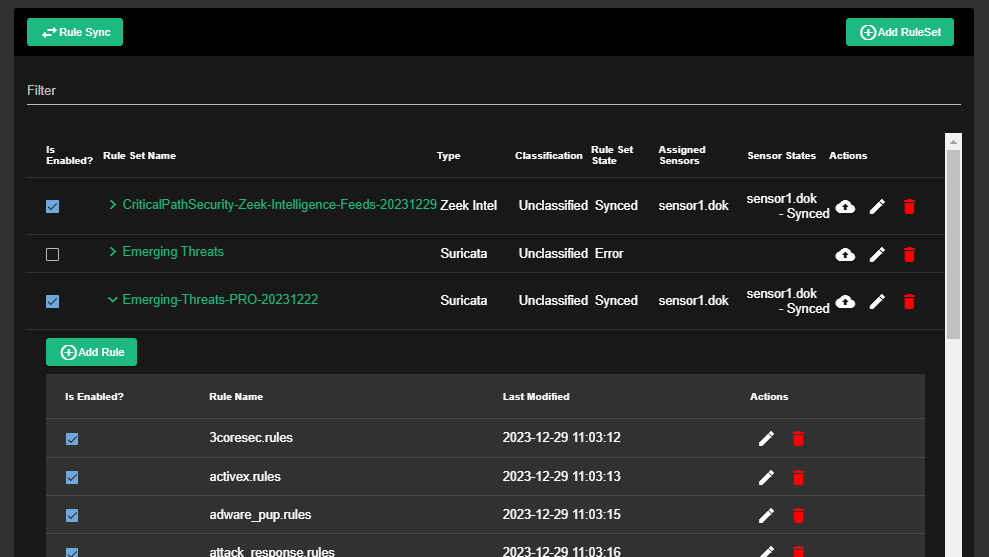
The ANALYTICS project contains sub-folders for different categories of analytics that will be pulled by the https://code.levelup.cce.af.mil/262-cos/dok/cvah-customizations project CI/CD pipeline to ultimately be automatically loaded into the TFPlenum rule page during the DIP build process.
Rules automatically loaded into TFPlenum
All things Elastic related live under ANALYTICS/00_ELASTIC, where each of the sub-folders within this folder are meant to store specific types of objects:
ANALYTICS/02_SURICATA/RULES: Suricata Rules (.rules,.zip,.tar.gz)ANALYTICS/03_ZEEK/INTEL: Zeek Intel (.dat,.intel,.zip,.tar.gz)ANALYTICS/03_ZEEK/SCRIPTS: Zeek Scripts (.zeek,.zip,.tar.gz)ANALYTICS/03_ZEEK/SIGNATURES: Zeek Signatures (.sig,.zip,.tar.gz)
NOTE: Group non-archive (
.zip,.tar.gz) files into their own subfolder(s) and not the base directory - rule sets will be named after the subfolder or.zip/.tar.gzarchive filename
NOTE: If you want your custom creations to be added to the next DIP build, they must be added to the corresponding folder and commited to the Git repository
1. Create your own working branch
-
Change directories to the
/cvah/git/folder:cd /cvah/git/ -
Pull the
ANALYTICSproject from the DIP Gitlab to/cvah/git/ANALYTICS:git pull https://gitlab/262-cos/ANALYTICS.git -
Create a new branch of the current snapshot of the
mainbranch with name containing your username, then usecheckoutto switch to it:git branch <YOUR_USERNAME>-edits
git checkout <YOUR_USERNAME>-edits -
Publish your new branch to the DIP Gitlab:
git push --set-upstream origin <YOUR_USERNAME>-editsNOTE: You can skip this step if you do not have a connection to the DIP Gitlab.
2. Making changes in VS Code
-
Start VS Code and open the local
ANALYTICSrepository:code /cvah/git/ANALYTICSNOTE: You may be prompted to
Trust the authors of all files in the parent folder 'git'- check the box and click Yes -
Copy the Suricata/Zeek rule files that you want to commit to the Git repository and save them to their corresponding folder
-
Commit and sync your changes via VS Code using the VS Code Fundamentals page as a reference